What is a HEIC file?
A HEIC file is the photo format newer iPhones save by default. Here's what it is, why it won't open on many Windows PCs, and how to convert it to JPG.
What is a HEIC file?
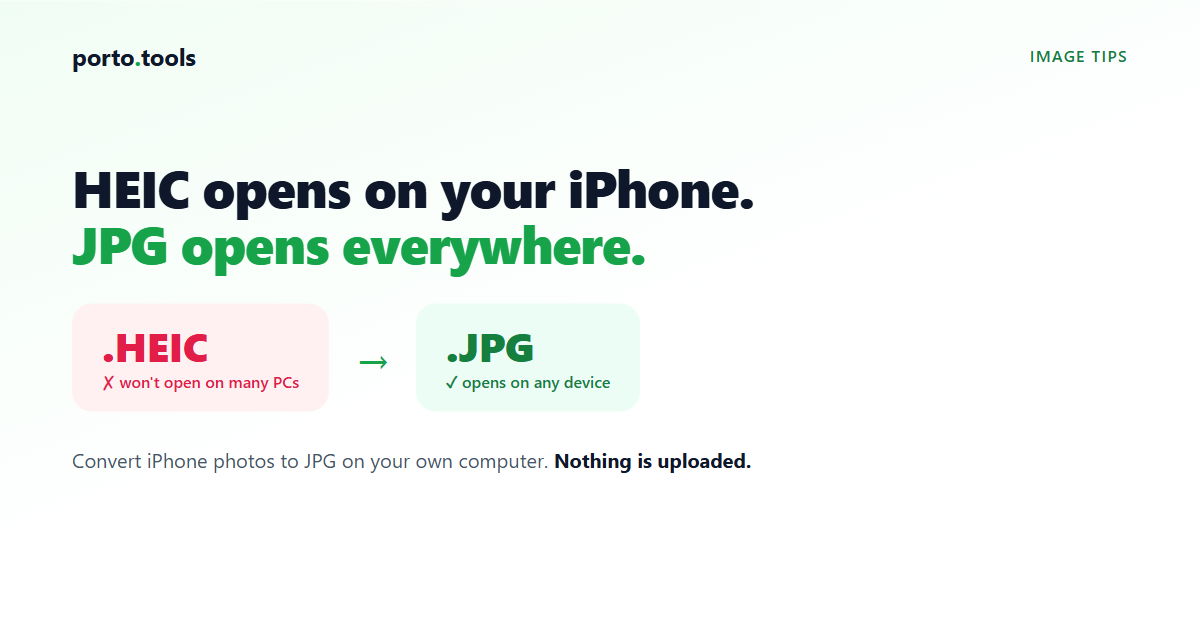
A HEIC file is a photo. It's the format newer iPhones and iPads save pictures in by default. The name stands for High Efficiency Image Container, and the point of it is size: a HEIC photo is roughly half the size of the same picture saved as a JPG, at about the same quality. That's great on your phone. It's a problem the moment you try to open the photo somewhere that doesn't recognize the format, which is most Windows PCs.
Why does my iPhone save photos as HEIC?
Apple switched to HEIC as the default a few years back to save storage. The format uses a more modern kind of compression than JPG, so the same photo takes up less room. On a phone full of thousands of pictures, that adds up fast.
Your iPhone shows these photos normally because Apple's software reads HEIC without any fuss. You'd never know the format changed. The trouble only starts when the photo leaves the Apple world and lands somewhere that's never heard of it.
Why won't my iPhone photo open on Windows?
Because a lot of Windows software doesn't read HEIC. Windows 10 and 11 can open HEIC photos if a specific extension is installed, and on many machines it isn't. So you double-click the file and get an error, or a blank preview, or a prompt to buy something from the Microsoft Store.
It shows up in a few common ways:
- You double-click a
.HEICfile and Windows says it can't open it. - You drag the photo into an older program (an email client, a design tool, an accounting app) and it refuses the file.
- You try to upload the photo to a website or a portal and the form rejects it, because the form only accepts JPG or PNG.
If a client or coworker emailed you photos straight from their iPhone, this is usually what happened. The photos are fine. Your computer just doesn't speak the format.
The fix: convert the HEIC to a JPG
JPG is the format that opens everywhere. Windows reads it, every photo program reads it, and upload forms accept it. So the fix is to convert the HEIC file to a JPG, and then use the JPG.
You can do this with porto.tools HEIC to JPG converter. You drop the photo in, it converts on your own computer, and you download the JPG. The photo never leaves your device. That matters when the photo isn't really yours to upload, like when a client sent it and it shows a property, a person, or a document you'd rather not hand to an unknown website. If you want to check nothing is being sent, turn off your wifi after the page loads and the converter still works.
It's free, with no sign-up and no watermark. If you have a batch of photos from the same iPhone, you can run them through together.
One honest detail: the JPG you get back is usually a bit larger on disk than the original HEIC was. HEIC packs a photo into less space, so converting to the older JPG format trades some of that efficiency for compatibility. For most photos the difference is small, and the JPG opens everywhere, which is the whole reason you're converting it.
If you also need to handle PNG or WebP images, the same tool covers those under the image converter.
Will I lose quality when I convert?
A little, in theory. JPG is a lossy format, so a single conversion drops a tiny amount of detail you're very unlikely to notice on a normal photo. For sharing, printing a snapshot, or uploading to a form, the converted JPG looks the same to the eye. The thing to avoid is converting the same photo back and forth many times, since each save loses a bit more.
Frequently asked questions
- What is a HEIC file?
- A HEIC file is a photo saved in the format newer iPhones and iPads use by default. It stands for High Efficiency Image Container. It stores a picture in about half the space of a JPG at similar quality, which saves room on your phone but causes trouble on devices that don't recognize the format.
- Why won't my iPhone photo open on Windows?
- Many Windows programs can't read HEIC, the format newer iPhones save in. Windows can open HEIC only if an extra extension is installed, and on lots of PCs it isn't. Converting the photo to a JPG fixes it, because JPG opens on virtually every computer and program.
- How do I convert a HEIC file to a JPG?
- Drop the HEIC photo into a [HEIC to JPG converter](https://porto.tools/heic-to-jpg). With porto.tools it converts on your own computer, so the photo never leaves your device, and you download a JPG that opens anywhere. It's free, with no sign-up, and it handles several photos at once.
- Will I lose quality converting HEIC to JPG?
- A single conversion loses a tiny amount of detail you're unlikely to notice on a normal photo. JPG is a lossy format, so the converted file looks the same to the eye for sharing, printing, or uploading. Avoid converting the same photo back and forth repeatedly, since each save loses a little more.
- Why does my iPhone save photos as HEIC?
- Apple made HEIC the default to save storage. It uses more modern compression than JPG, so each photo takes up less space on the phone. Your iPhone reads the format fine, which is why the problem only shows up when the photo moves to a Windows PC or an older program.
- Is the JPG larger than the original HEIC?
- Usually a little, yes. HEIC fits a photo into less space than JPG does, so converting to JPG trades some of that efficiency for compatibility. The size difference is small for most photos, and the JPG opens on devices and forms that reject HEIC.
Try it yourself
Every porto.tools converter runs entirely in your browser — your files never leave your device.