How to Merge PDF Files (Privately, in Your Browser)
Combine several PDFs into one document right in your browser, so nothing uploads. Reorder the files, merge, and download. Free, no watermark, no sign-up.
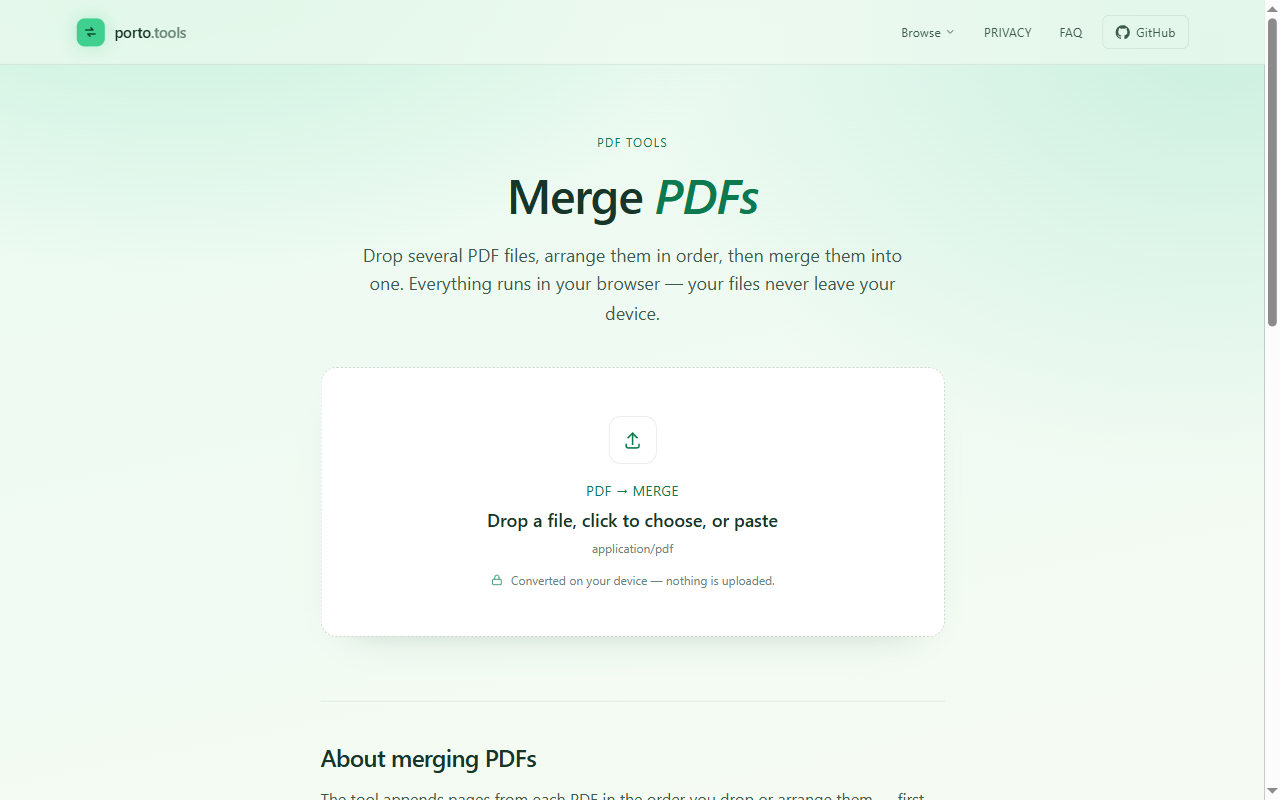
How to merge PDF files (privately, in your browser)
You've got a signed contract and a cover letter, or a stack of scanned pages, and you need them as one PDF to send. The job is simple. The catch is that most free merge tools work by uploading your files to their server first, and a contract or a set of HR scans isn't something you want to hand to a website you don't know. Here's how to combine them into one document right in your browser, where the files stay on your computer.
Combine your PDFs without uploading them
porto.tools/pdf-merge runs in your browser, on your own machine. You add the PDFs, arrange them, merge, and download the result. Nothing gets uploaded. If you want to check, turn off your wifi after the page loads and the merge still works, because the file never needed to go anywhere. It's free, with no sign-up and no watermark on the finished PDF.
The steps
Combining a few PDFs into one takes four steps.
- Add your files. Open the merge tool and drop in the PDFs you want to combine, or click to browse and pick them. You can add two files or a dozen.
- Put them in order. Drag the files into the sequence you want. The merged PDF follows that order top to bottom, so a cover letter on top followed by the signed contract comes out in exactly that order.
- Merge. Click merge, and the tool stitches the files into one PDF on your computer. Larger files take a moment, but there's no upload and no waiting on a server.
- Download. Save the single combined PDF. That's the file you send.
A few real examples
The merge job shows up in a handful of everyday situations.
A signed contract plus its cover letter, combined so the other side gets one clean attachment instead of two. A set of scanned receipts or invoices, stitched into one file for an expense report. Several pages a colleague sent separately, joined back into the document they were meant to be. A scanned ID, a form, and a proof of address, merged into one packet for an application.
In each case you're taking a few PDFs and handing over a single tidy file. The reordering step matters more than it sounds: scans often come in the wrong sequence, and dragging them into place before you merge saves you from re-doing the whole thing.
Why doing it in your browser matters for confidential files
If the documents hold anything private, a contract, payroll numbers, an HR record, a client's personal details, where the merge happens is the whole question. A tool that uploads your files puts a copy on someone else's server, governed by a privacy policy you didn't read. Plenty of workplaces block those sites for that reason.
When the merge runs in your browser, the files stay on your computer. There's no upload to intercept and no copy left behind on a server you don't control. That makes it suitable for the sensitive documents office workers deal with every week.
One honest note: porto merges and converts files. It doesn't scan them for malware or phishing, and it can't protect you from a file that's already harmful. Keeping the file on your own machine is about confidentiality, which is a different thing from virus protection.
Splitting back out, if you need to
Sometimes the job runs the other way: you've got one long PDF and you need a few pages on their own, or you want to break a big file into parts. That's a split, and porto.tools/pdf-split handles it the same way, in your browser, with nothing uploaded.
Frequently asked questions
- How do I combine PDFs into one file?
- Open a browser-based PDF merge tool, add the PDF files you want to combine, put them in the order you want, then merge and download the single result. With a tool that runs in your browser, the files stay on your computer the whole time, so nothing uploads.
- Can I reorder the files before merging?
- Yes. After you add your files, drag them into the order you want before you merge. The page numbers carry over in that order, so a cover letter followed by a signed contract comes out in exactly that sequence in the final PDF.
- Is it free, and is there a watermark?
- porto.tools is free, with no sign-up and no watermark on the merged PDF. There's no file-size limit and nothing to install. You drop your files in, merge, and download a clean PDF.
- Is it safe for confidential documents?
- With porto.tools the merge happens in your browser, on your own computer, so the files never get uploaded anywhere. That makes it suitable for contracts, financials, and HR records. porto is a converter, though, so it can't protect you from a file that already carries malware.
- Can I merge PDFs on a phone?
- Yes. porto.tools runs in a mobile browser the same way it runs on a laptop. You add the PDFs from your phone, reorder them, merge, and download. The files stay on the phone the whole time.
Try it yourself
Every porto.tools converter runs entirely in your browser — your files never leave your device.