How to Convert HEIC to JPG on Windows (Without Uploading)
Convert HEIC photos to JPG on Windows right in your browser. Drag, drop, download. The photo stays on your computer and is never uploaded.
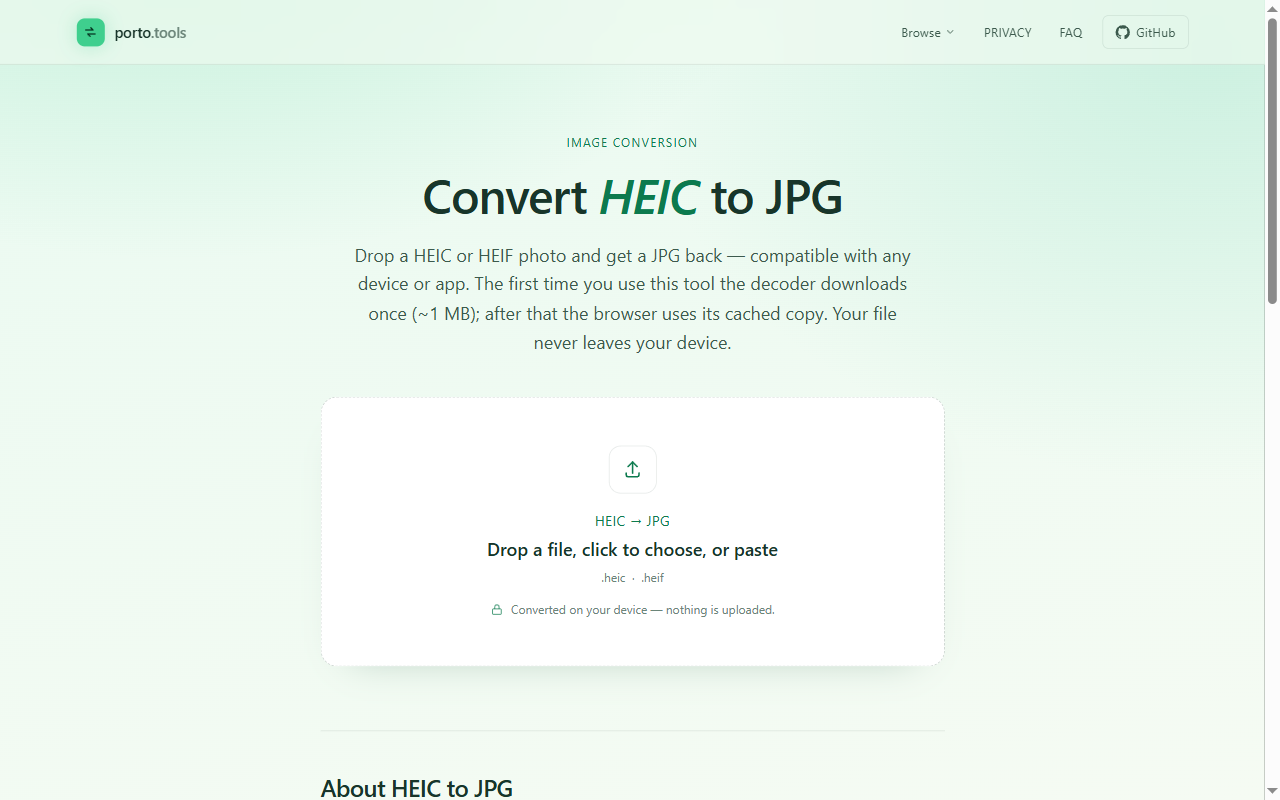
How to convert HEIC to JPG on Windows (without uploading)
To convert a HEIC photo to JPG on Windows, open a browser-based converter, drag the photo onto the page, and download the JPG. It runs inside your browser on your own computer, so the photo never gets uploaded anywhere. You can drop in a whole folder of HEIC files and get a JPG back for each one.
Why your iPhone photo won't open on Windows
If someone sent you photos from an iPhone and they won't open on your PC, the file is almost certainly a HEIC. Apple switched to HEIC a few years back because it stores a photo in a smaller file at the same quality. Windows doesn't always read it. You double-click, and either nothing happens or you get a prompt to install something.
JPG is the format that opens everywhere: email, Word, every photo viewer, every website upload box. So the fix is to turn the HEIC into a JPG. Here's the quick way to do it.
Convert a HEIC to JPG in three steps
This works on any Windows computer with a current browser. Nothing to install.
- Open the converter. Go to the HEIC to JPG tool. The page loads and you're ready to go.
- Drop in your photo. Drag the HEIC file from your folder onto the page, or click to pick it. You can also paste a photo you've copied. The conversion happens right there on your computer.
- Download the JPG. Once it's done, click to save the JPG to your computer. Open it, attach it, upload it anywhere you like.
That's the whole process. Drag, drop, download.
Converting several photos at once
Most of the time you've got more than one photo to deal with: a set of listing photos, a batch of receipts, the album a client sent. You don't have to do them one at a time.
Drop the whole group onto the page together. Each HEIC comes back as its own JPG, and you save them in one go. There's no daily cap and no file-size limit, so a folder of fifty photos goes through the same way a single one does.
The photo stays on your computer
Here's the part that matters when the photo is more than a snapshot. Most online converters work by uploading your file to their server, converting it there, and sending it back. For a holiday photo, that's fine. For a photo a client sent you, an image of a contract, a medical document someone shared, or anything with a face or a license plate in it, you're handing a private file to a company you know nothing about.
A browser-based converter skips that. The page loads once, then the conversion runs on your own machine. The photo never leaves your computer. If you want to check, turn off your wifi after the page has loaded and the converter still works, because there's nothing being sent anywhere. For a client's photos or anything personal, that keeps the file yours.
What about Windows' own options
Windows does have a couple of built-in paths, and they're worth knowing about honestly.
You can open a HEIC in the Photos app, then use Save as to write it out as a JPG, one photo at a time. The catch is that opening HEIC at all usually needs the HEVC Video Extensions codec, which Microsoft often charges a small fee for in the Store. And the Photos app won't convert a whole folder for you, so a batch turns into a lot of clicking.
The Paint app can also open a HEIC (once the codec is in place) and save it as a JPG. Same one-at-a-time limit. These work in a pinch for a single photo. For a batch, or when you'd rather not install a codec, the browser converter is simpler.
A quick note on file size
Don't be surprised if the JPG is a little bigger than the HEIC it came from. HEIC packs the image more tightly, so the same picture takes more room as a JPG. The photo looks the same. If you need it smaller for email, you can compress the JPG afterward, but for most uses the size difference doesn't matter.
Frequently asked questions
- Do I need to install an app to convert HEIC to JPG?
- No. A browser-based converter runs on the page you already have open, so there's nothing to download or install. You open the tool, drop in your HEIC photos, and download the JPGs. It works on any Windows computer with a modern browser.
- Is it safe to convert HEIC photos online?
- It depends on the tool. Most online converters upload your photo to their server first, which means a copy leaves your computer. A browser-based converter does the work on your own machine, so the photo never gets uploaded. That keeps a client's or family photo yours.
- Can I convert many HEIC photos at once?
- Yes. You can drop a whole batch of HEIC files in together and get a JPG back for each one. There's no per-file or per-day limit, so a folder of vacation or job-site photos converts in a single pass.
- Will the JPG be larger than the HEIC?
- Often, yes. HEIC is a newer format that packs the same image into a smaller file, so the JPG version of the same photo is usually a bit bigger on disk. The picture looks the same. If size matters for email, you can compress the JPG afterward.
- Does Windows have a built-in way to open HEIC files?
- Sometimes. Windows can open HEIC if the right codec is installed, and the HEVC codec it relies on is often a paid add-on from the Microsoft Store. Even when it opens, Windows won't convert a folder of HEIC files to JPG for you, which is where a converter helps.
Try it yourself
Every porto.tools converter runs entirely in your browser — your files never leave your device.