How to Compress a PDF to Email It (Without Uploading It)
Your PDF is too big to email. Here's how to compress it in your browser so it clears Gmail and Outlook size limits, with the file never leaving your computer.
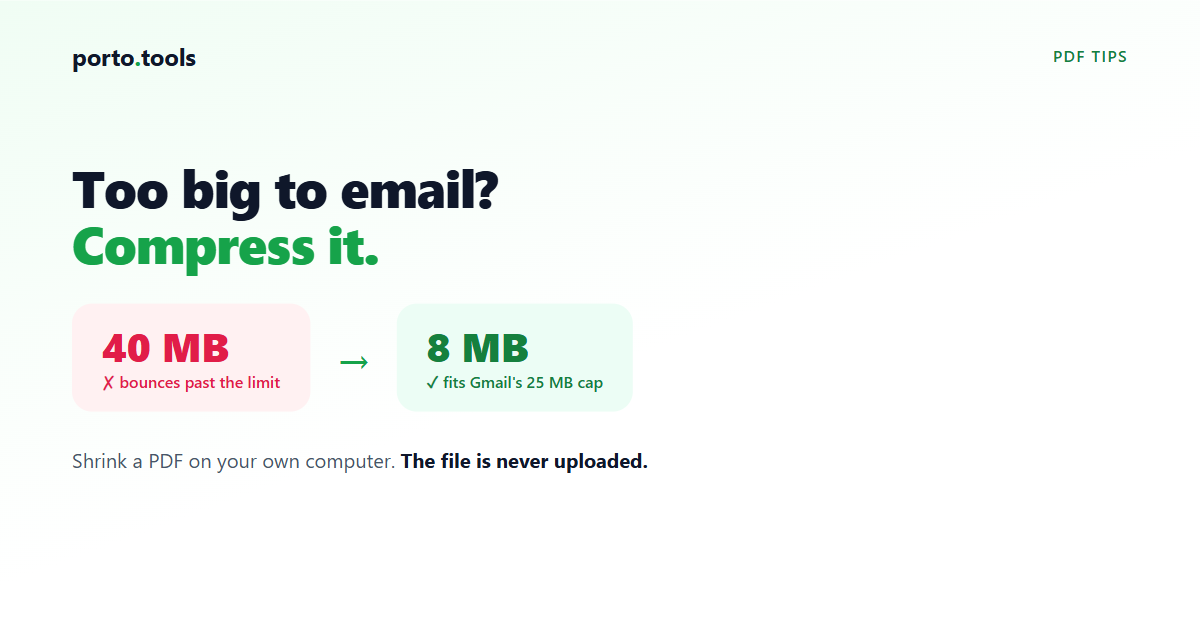
How to compress a PDF to email it
Your email bounced back, or the send button just won't go, because the PDF is too big. The fix is to compress the file so it clears your provider's size limit. You can do this right in your web browser, and with the right tool the file never gets uploaded anywhere, which matters when the PDF is a contract or something with personal data in it. Here's how to do it, and what to watch for.
Why your PDF is too big to email
Two things are usually going on.
First, the file itself. PDFs balloon when they contain high-resolution images or scanned pages. A ten-page text document might be under a megabyte. The same ten pages scanned on a copier can run to 40 MB, because each page is really a photo.
Second, the email limit. Gmail caps attachments at around 25 MB. Outlook.com sits at about 20 MB. Plenty of company email systems set their own limit, often lower. So a file that opens fine on your computer can still be too big to send.
There's a catch that trips people up. When an attachment goes out, your email program encodes it for transit, and that encoded version is roughly a third larger than the file sitting on your disk. So a 19 MB PDF can push past a 20 MB limit once it's wrapped up for sending. That's why a file that looks like it should fit sometimes bounces anyway. The safe move is to aim a few megabytes under the stated limit.
How to compress a PDF in your browser
Here's the short version, using porto.tools:
- Open the PDF compressor in your browser.
- Drag your PDF onto the page, or click to pick it.
- Let it compress. It runs on your own computer, so there's no upload wait.
- Check the new file size, then download the smaller PDF.
- Attach it to your email and send.
The whole thing takes a few seconds. If you want to confirm nothing's being uploaded, turn off your wifi after the page loads. The compressor still works, because the file never leaves your machine.
Why this matters for a confidential PDF
Most online compressors work by uploading your file to their server, shrinking it there, and sending it back. For a flyer or a holiday newsletter, that's no problem.
For a signed contract, a payroll spreadsheet exported to PDF, an HR record, or a client's financial statement, it's a different situation. Uploading hands a private file to a company you know nothing about. Security advisors tell people in HR, finance, legal, and healthcare plainly: don't upload confidential files to free online converters. Many workplaces block those sites for the same reason.
A tool that compresses the file in your browser sidesteps that entirely. The PDF stays on your computer the whole time, so there's no copy on someone else's server and nothing for your IT department to flag. To be clear about scope: keeping the file on your device protects the file's contents. It isn't an antivirus and it won't catch malware in a file someone sent you. It does one thing, which is convert and compress without sending your file anywhere.
A note on quality
Compression makes a PDF smaller by reducing the data in its images. For a document that's mostly text, you'll rarely see a difference. For a scan-heavy or photo-heavy PDF, the images get downsampled, so fine print, signatures, or detailed graphics can look a little softer than the original.
This is worth a quick check. Compress the file, open it, and look at the pages that actually matter, the ones with the small print or the signature. If it reads cleanly, send it. If something important looks too soft, keep the original and find another way to share it, like a link to a shared drive.
When compression isn't enough
Sometimes a PDF is just too big to email even after compressing, usually a long scanned document. A couple of options:
- Split the PDF and send it in two emails. porto.tools can split a PDF into smaller files.
- Share a link instead of an attachment, through your company's shared drive or a file-sharing service your workplace approves.
For everyday PDFs that are a bit over the line, though, compressing in your browser is the quickest fix, and your file stays where it is the whole time.
Frequently asked questions
- Why is my PDF too big to email?
- PDFs grow large when they hold high-resolution images or scanned pages. Email providers also cap attachment size, around 25 MB on Gmail and about 20 MB on Outlook.com. And the attachment gets encoded for sending, which makes it larger than the file on disk, so a PDF that looks under the limit can still bounce.
- What's the email attachment size limit?
- Gmail allows attachments up to about 25 MB. Outlook.com allows about 20 MB. Company email servers often set their own lower limits. Because attachments are encoded for transit, the real ceiling is lower than the stated number, so aim a few megabytes under it.
- Will compressing a PDF lose quality?
- For PDFs that are mostly text, the difference is usually hard to notice. For scan-heavy or photo-heavy PDFs, compression reduces image resolution, so fine print or detail can look softer. Compress, then open the result and check the pages that matter before you send.
- Is it safe to compress a confidential PDF?
- It depends on the tool. Most online compressors upload your file to their server, which means a contract or financial PDF leaves your control. A browser-based tool like porto.tools compresses the file on your own computer, so it never gets uploaded anywhere.
- How small can a PDF get?
- It depends on what's inside. A text-heavy PDF may shrink a little because there isn't much to compress. An image-heavy or scanned PDF can often drop by half or more, since the images are where the size lives. Try it and check the result against your email limit.
Try it yourself
Every porto.tools converter runs entirely in your browser — your files never leave your device.